


NexFrame: AI Video Maker
0.00.00 Reviews
App Specs
- Version
- 1.0.0
- Updated On
- License
- Free
- Downloads
- 10,000+
- Developer
- Psk extra
- Categories
- Art & Design
- Platform
- Android
Screenshots
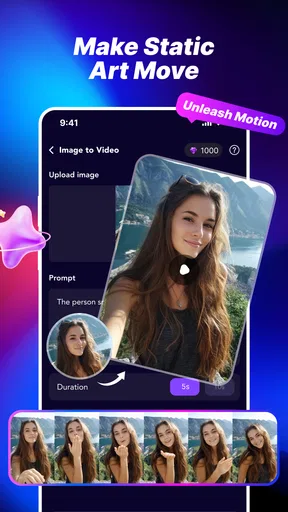
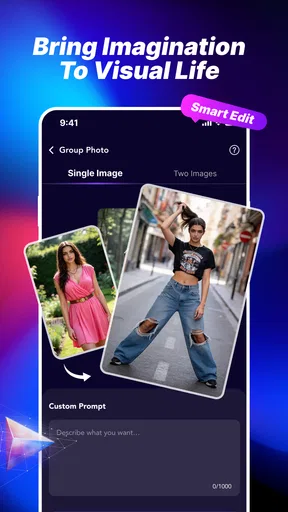
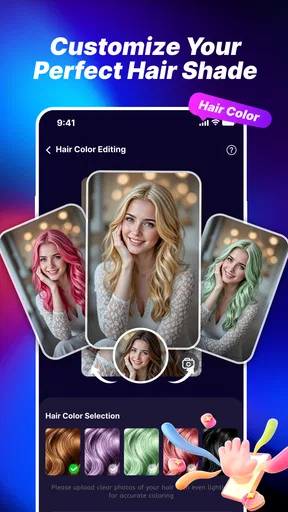
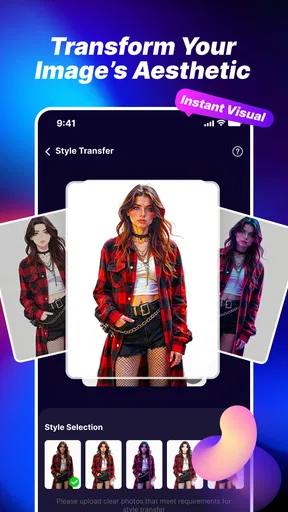
 Analysis by AppCompare
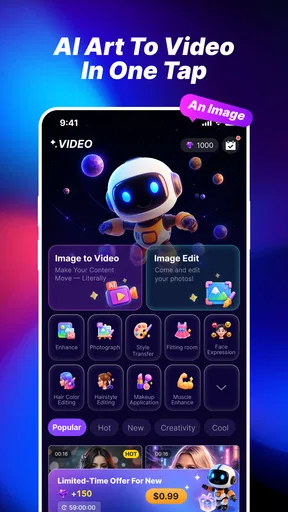
I approached NexFrame: AI Video Maker as a quick creative tool rather than a full video-editing suite. Its main appeal is simple: I can start with a photo, apply an AI-driven video treatment, and use a creative template without building an entire project manually. That focus makes it interesting for people who want movement and atmosphere from still images, especially when a conventional editor feels too slow for a casual post.
The app sits in the Art & Design category and is developed by Psk extra. It is free to install, although in-app purchases range from $1.99 to $99.99 per item. That pricing detail matters because the basic download is easy to try, but anyone planning to use it regularly should pay attention to which creative options are available without an additional purchase. The app is marked Mature 17+, runs on Android 7.0 or later, and its current version is 1.0.0.
Turning a still image into something that feels alive
The strongest idea here is not that NexFrame replaces a traditional editor. It does something narrower and, in the right situation, more convenient: it gives a single photograph a video-like presentation with very little setup. I found that distinction useful. Instead of opening a timeline, choosing a canvas, adding keyframes, and adjusting several layers, I can begin with the visual I already have and let the app’s AI treatment provide the motion concept.
That one-tap approach changes how I think about source material. A photo no longer has to be perfect as a standalone picture. It can work as the starting point for a short visual experiment. A portrait, a product image, a travel snapshot, or a graphic made for social media can become more noticeable when it has movement around it. The result is less about detailed editing control and more about getting from an idea to a shareable visual quickly.
The creative templates are important because they give the process direction. Starting from a blank editor can be surprisingly difficult when the goal is only to make something attractive in a few minutes. A template provides a visual mood and a structure to test. I would use one when I know the feeling I want—dramatic, playful, polished, or energetic—but do not want to design every transition myself.
The real strength is reduced decision-making. NexFrame is useful when the obstacle is not a lack of imagination, but the number of small editing choices standing between an ordinary image and a finished clip. The app’s promise is therefore most convincing for quick visual communication, not for people who want to control every frame.
What the one-tap workflow changes
In a normal mobile editor, a photo-to-video project often grows into a checklist. I might need to choose a duration, decide how the image should move, add text, select music, set transitions, and check whether the composition still works on a phone screen. NexFrame’s central workflow compresses that process. I can test a visual direction before investing time in detailed polishing.
Worth Reading Before You Choose

Flipboard Shows What News Apps Must Do Beyond the Feed

Switching to Android Auto Means Rethinking Your Driving Routine

Google Calendar Makes a Crowded Week Easier to Manage

Ludo King Makes the Most of the Minutes Between Plans

Baby Panda World Brings Quick Play to Modern Phones, but Its Game Library Feels Busy

ESPN’s Live Game View Makes Following Close Games Easier
That is particularly helpful when I am making several variations from related images. For example, a small business owner could prepare a handful of product photos and explore different template styles instead of manually constructing a separate animation for each one. The useful insight is to treat the first result as a visual draft, not necessarily the final advertisement. It can reveal which image has enough contrast, space, and subject clarity to survive motion.
I also see value for people who are not comfortable with editing terminology. There is no need to begin by thinking about keyframes or motion paths. The user’s first decision is more natural: which photo should I try, and which creative direction fits it? That lowers the entry barrier without pretending that AI can solve every design problem.
At the same time, a simplified workflow can hide important choices. If a generated result feels too busy, too dramatic, or poorly balanced, I may not have the same fine-grained correction options that a conventional editor offers. The convenience is real, but it comes from handing over part of the creative control.
A practical session with a personal photo
Imagine I have taken a portrait during an evening walk and want to send it to a friend as something more memorable than a still image. I would begin with the original photograph, choose a template that supports the mood rather than fighting it, and generate a short visual. The best source would probably have a clear subject and enough separation between the person and the background. A cluttered image gives the AI more visual ambiguity, so the result may feel less intentional.
My next step would be comparison, not immediate sharing. I would look at whether the face remains the focus, whether the movement distracts from the expression, and whether the template adds atmosphere or simply adds effects. This is one of the more practical ways to use the app: generate quickly, judge the result as a composition, and change the source or template when the image itself is the problem.
For a family memory, I would favor restraint. A template that looks exciting in a preview may overpower a quiet photograph. For a birthday greeting or a playful message, stronger movement may be appropriate. The app is more useful when I choose the treatment based on the purpose of the image instead of assuming that the most noticeable effect is automatically the best one.
Another useful workflow is making a visual invitation. I could prepare an image with deliberate empty space for the event details, then test whether the template preserves that space. If the animation pushes attention into the text area, the source image may need to be redesigned before importing it. This is a subtle but important point: AI video effects do not remove the need for basic layout awareness.
The best everyday scenario
The clearest use case for me is a quick social post made from a photo that already exists. Suppose I have a café photo, a handmade item, or a snapshot from a weekend trip. I may not need a complete campaign or a carefully edited film. I simply want the image to feel more active in a feed where static pictures compete with moving content. NexFrame can be a practical first stop because it focuses on turning that single image into a more dynamic presentation.
It also suits a small creator who needs to test ideas before committing to a larger production. A designer could use it to preview the emotional direction of a concept. A shop owner could see whether a product photograph benefits from motion before paying attention to detailed branding. A student could create a visual mood piece without spending an evening learning a complex editor.
There is a trade-off in this scenario. If the post requires exact brand typography, carefully timed captions, voice-over, multiple clips, or a precise sequence, I would move to a traditional video editor. NexFrame makes the most sense when the image is the central material and speed matters more than a deep timeline.
For a friend who asks whether it is suitable for professional client work, my answer would be conditional. It can help with concept exploration and fast drafts, but I would not rely on it alone for a project where every visual detail needs approval. The app’s value is strongest at the beginning of the creative process or in lightweight content, not necessarily at the final finishing stage.
Where it differs from ordinary photo and video editors
Standard photo editors are better when I want to correct color, remove distractions, retouch a face, or improve sharpness before exporting a still image. Standard video editors are better when I need layers, exact timing, audio, captions, and a sequence made from several clips. NexFrame occupies a narrower middle ground: it starts with a photo but aims to produce a video-style result through AI and templates.
That difference affects who will enjoy it. Someone who likes manual control may find the experience too limited, while someone who normally posts unchanged photos may appreciate the quick creative lift. I would not compare it with a full editor on the number of controls; I would compare it on how quickly it helps me explore a visual idea.
The template approach also changes the kind of originality I can expect. Templates are useful for consistency and speed, but they can encourage familiar-looking results if I accept the first option without thinking. My advice is to use the template as a starting framework and let the source image carry some of the personality. A less obvious photograph with a strong subject can feel more individual than a perfect image placed into an overly recognizable effect.
Small decisions that improve the result
First, I would prepare the photo before importing it. Even when the app is designed to simplify creation, a clear crop and a strong focal point give the AI a better foundation. If the subject is tiny, the background is chaotic, or the lighting is flat, changing templates may not solve the underlying issue. A quick crop outside the app can be more valuable than repeatedly generating new versions.
Second, I would keep a clean original copy. AI-based transformations are best treated as experiments. Saving the untouched image means I can try a different visual direction later, use the photo in another project, or compare the generated result with the starting composition. This also prevents a quick creative test from becoming the only version of an important memory or product image.
Third, I would judge the result with the intended viewing size in mind. A detail that looks attractive on a large screen may disappear on a phone, while a strong effect may become distracting when the video is seen repeatedly. Before sharing, I would check the subject at a small size and ask whether the motion supports the message. That simple test helps separate genuine visual improvement from decoration.
Fourth, I would use templates as a comparison tool rather than browsing endlessly. I would pick a few that match the image’s mood, generate variations, and stop once one clearly supports the purpose. The app’s speed can encourage excessive experimentation, but more versions do not automatically produce a better result. A focused selection process keeps the creative task from turning into random effect hunting.
Finally, I would think carefully before paying for an option. Because purchases can range from $1.99 to $99.99 per item, the difference between casually trying the app and using it as a regular creative tool may be significant. I would first establish whether the available workflow fits my needs, then consider a purchase only when a particular option solves a real problem in my projects.
Limitations I would want to know about first
The biggest limitation is the same feature that makes the app approachable: one-tap creation reduces control. If the generated movement does not match the subject, I may have fewer ways to correct it than I would in a timeline-based editor. This is not a minor concern for designers who need exact positioning or for creators whose work depends on a consistent visual system.
Templates can also create a mismatch between the image and the effect. A calm landscape may look unnatural with an aggressive treatment, while a busy product photo may become harder to understand after animation. The app can generate a result quickly, but it cannot decide the communication goal for me. I still have to reject attractive effects when they weaken the image.
The Mature 17+ content rating is another practical consideration. I would not treat the app as a general-purpose creative tool for children or younger teens. Parents, schools, and youth organizations should take that rating seriously when deciding whether it belongs on a shared device or in a supervised workflow.
There is also a learning curve of a different kind. A complex editor teaches me how to control a project through visible tools. A simplified AI app asks me to learn how to select better source images and evaluate generated outcomes. That may feel easy at first, but getting consistently good results still requires visual judgment. The app removes technical steps; it does not remove taste.
Who gets the most value from it
I would recommend NexFrame to casual creators, social media users, small sellers, and visual hobbyists who often have a good photo but not the time or patience to turn it into a polished motion piece manually. It is also a useful sketching tool for designers who want to explore a direction before opening a more advanced application.
It is less suitable for someone who needs a complete production environment. If your work depends on multi-scene editing, detailed audio timing, complex captions, precise brand rules, or extensive retouching, a conventional editor will give you more dependable control. In that situation, NexFrame may still be useful for a quick concept, but I would not make it the center of the workflow.
Device compatibility is reasonably broad because the app supports Android 7.0 and later. That makes it accessible to people using older Android hardware, although the experience of generating visual content can still depend on the phone’s overall performance and available storage. I would keep enough free space for source images and exported results, especially if I plan to test several variations.
The app has reached over ten thousand installs, which gives it an early audience without making popularity the main reason to try it. I would focus more on whether its narrow purpose matches my habits. If I regularly want to animate individual photos with minimal setup, the concept is relevant. If I want to build complete videos from many assets, the fit is weaker.
My recommendation after using the workflow
NexFrame: AI Video Maker is most convincing when I treat it as a fast photo-to-video idea generator. It helps me cross the gap between a static image and a more expressive visual without demanding the full process of manual editing. The combination of AI treatment and creative templates can make an ordinary content task feel more approachable, particularly when speed matters.
I would still keep expectations realistic. The app does not replace visual preparation, thoughtful template selection, or a stronger editor when precision is essential. Its generated results should be reviewed rather than accepted automatically, and the purchase range makes it sensible to test the free experience carefully before spending money. Those are not reasons to dismiss it; they define the situations where it works best.
For my own recommendation, I would suggest trying it when I have a specific photo and a clear purpose: a quick social post, a personal greeting, a visual draft, or a lightweight product idea. I would skip it when I need a carefully controlled production with multiple layers and exact timing. Used within that boundary, this free Art & Design app from Psk extra offers a convenient creative shortcut, and its current 1.0.0 release is worth exploring for anyone who wants still images to do a little more.
Pros
- Turns text prompts into polished videos with minimal editing effort.
- Useful templates help beginners create content quickly.
- AI-generated visuals can spark ideas for social media projects.
- Supports fast experimentation with different video concepts.
- Suitable for creators without advanced video-editing experience.
Cons
- AI results may not always match the prompt accurately.
- Some features or exports may require a paid subscription.
- Video generation can take time
- especially for complex requests.
- Customization may feel limited compared with professional editors.
- Generated content may need manual review for errors or odd visuals.
FAQs for NexFrame: AI Video Maker
What is NexFrame: AI Video Maker used for?
NexFrame: AI Video Maker is designed to help users create short videos with artificial intelligence, even without advanced editing experience. It can assist with turning ideas, text, images, or other media into social-ready content, depending on the tools available in the current version. It may be useful for creators, marketers, students, and anyone who wants to produce videos more quickly.
Is NexFrame: AI Video Maker free to download and use?
The application may be available to download at no initial cost, but some features can require in-app purchases, a subscription, credits, or a premium plan. AI video generation often depends on processing limits, export options, templates, or access to advanced effects. Before creating many projects, users should review the pricing screen and subscription terms shown in the official Android or iOS store.
Can beginners create videos with NexFrame: AI Video Maker?
Yes, the app is intended to make video creation more approachable for beginners. Users can generally start with a prompt, selected media, or a template and then adjust elements such as text, timing, music, visuals, and format. However, the quality of the result depends on the instructions provided and the source material, so some manual editing may still be needed for a polished final video.
Can videos made with NexFrame be exported and shared on social media?
NexFrame is aimed at creating content that can be saved or shared, but export availability may depend on the project type, account level, subscription, and app version. Free exports may include restrictions such as a watermark, lower resolution, limited formats, or usage limits. Users should check the export settings before finishing a project to confirm the available resolution, file type, and sharing options.
Is NexFrame: AI Video Maker safe to use with personal photos and videos?
Users should review NexFrame’s privacy policy and permissions before uploading personal or sensitive material. AI video tools may process images, videos, text, or voice data through online services, meaning content could be transferred to company servers for generation or improvement. Avoid uploading confidential files, verify how long content is stored, and grant only the permissions required for the features you plan to use.


